First, you need to download and install the software.
Second, you need to create your account at sailcup.com/srs/login.php
Third, you need to be granted single umpire by the Sailcup team, so you can create your own race and umpire alone, or you need to part of a club, organization, that have granted you chief umpire.
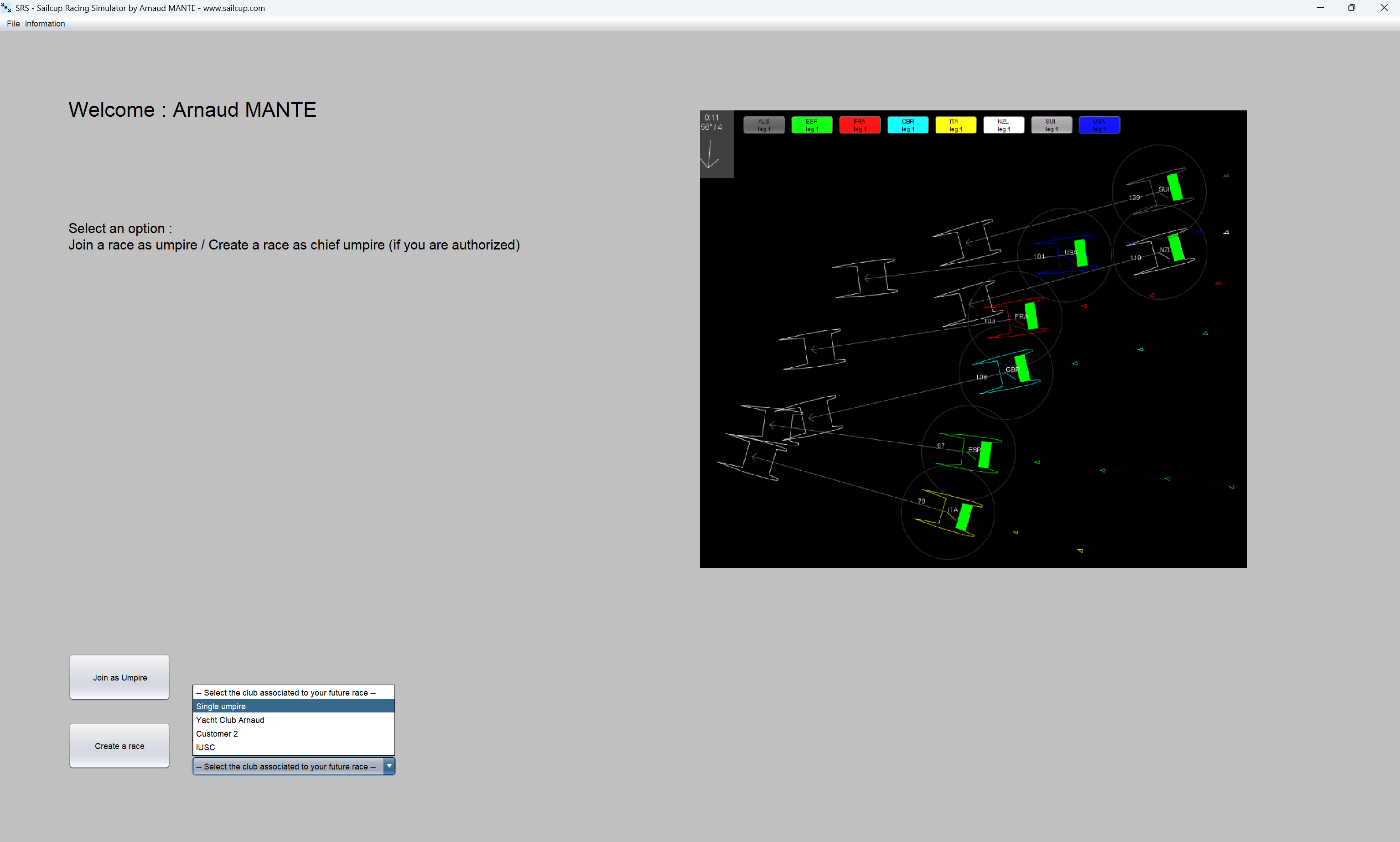
When all prerequisites are done, you will have this screen. Put your email and password.
Then, you have to decide if you wish to umpire alone or with other umpire.
If you want to umpire alone, select single umpire
If you want to be chief umpire with a group of umpire, select your club (if a club has granted you chief umpire!)
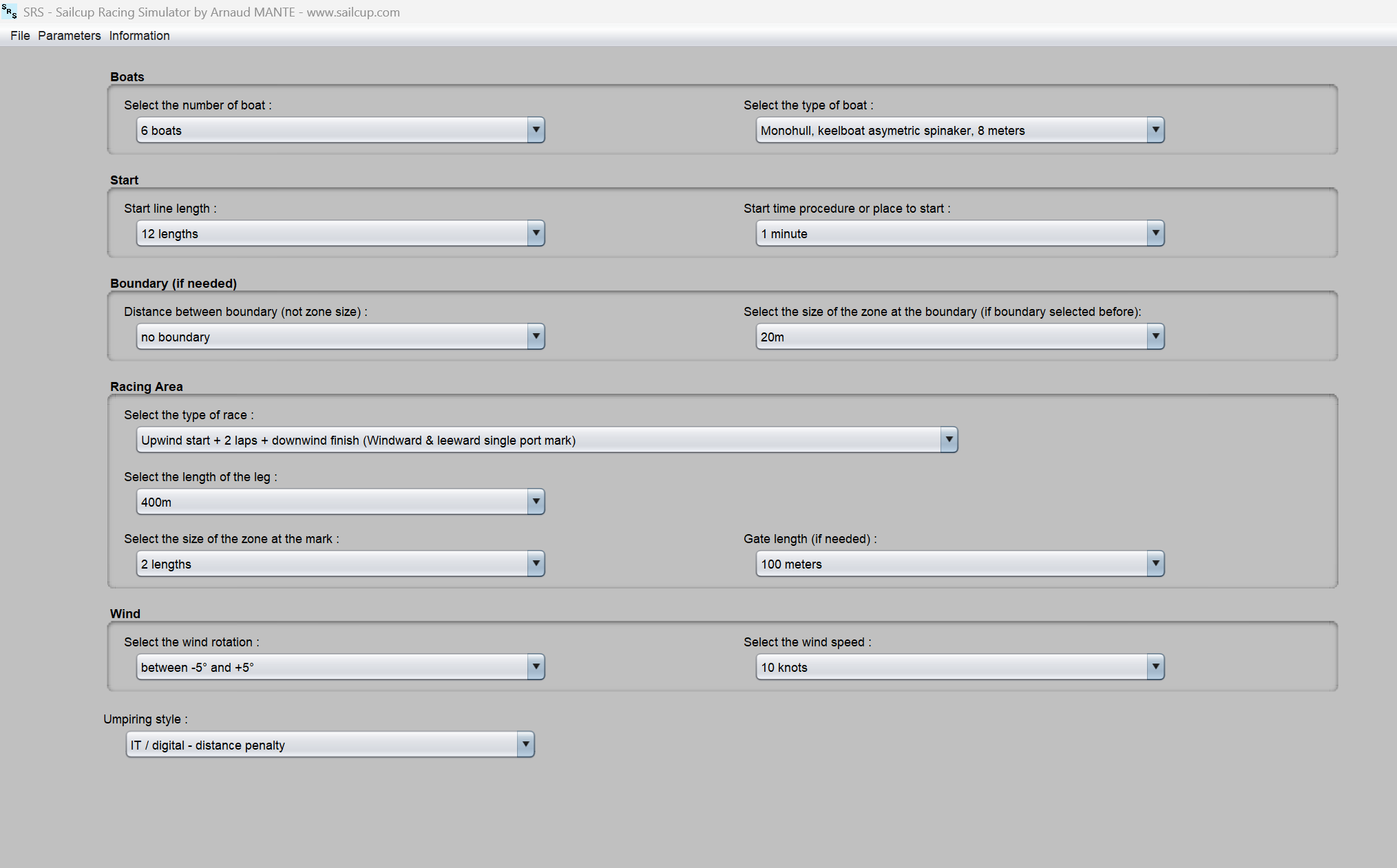
Select the different parameters of your race :
Number of boats, up to 14 (depending about your authorization)
This section only applies if you are a chief umpire for a club, not if you are training as single umpire.
First, your club, organization, must have already added some umpires to your group. For this :
The admin of your club needs to connect to : sailcup.com/srs/login.php
Then go to : Manage your umpires / Add an umpire.
Then, enter the email of the account of your umpire. Of course, before, this umpire needs to have created her/his account before.
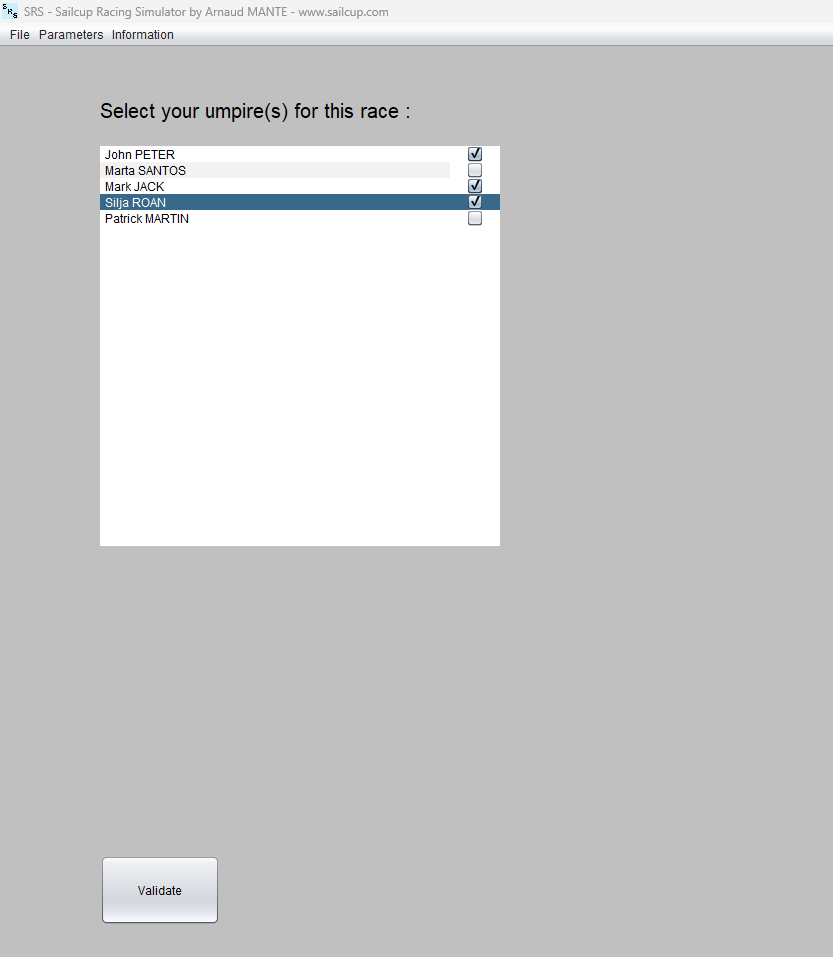
Back to the software, after creating a race with your parameters, you will have this panel:
Select the umpires (up to 4) and validate. In this example, i have 5 umpires in my club, and i wish to umpire with John, Mark and Silja
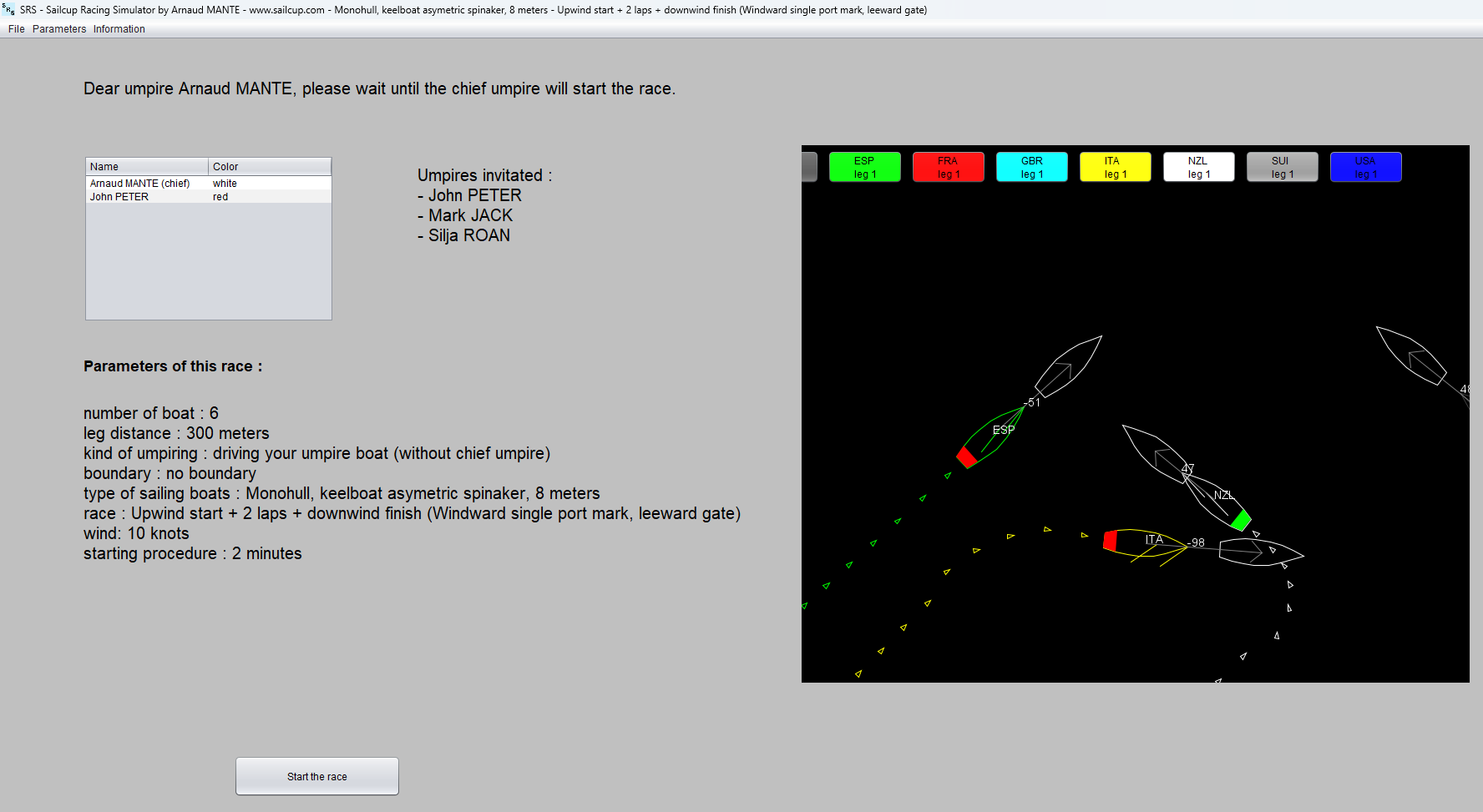
You will arrive to this panel, the waiting room. Just wait your umpires to connect, and you will see them connected. In this example, John is already connected, and you are waiting Mark and Silja to connect, join.
You can also see a color associated to each umpire already connected. This color will identify the boat(s) selected by this umpire. A reminder will display on the main panel, do not need to remember it now.
When you are ready, start the race by clicking the button and you and other umpires will see now the boats racing.
Important: if an umpire is late, or disconnected, he/she can reconnect at any moment, even if the race is already started.
Now we are talking about digital umpiring in details: the digital positioning.
This is the point that you need to take care :
Select the boat that you want to follow
Adapt the zoom
Synchronize with other umpires
Review an incident
First, when the race starts, the software will display a view from the north, but the wind is not necessarily north. Up to you, but most of the time, it is better to umpire with wind coming from the top of the screen!
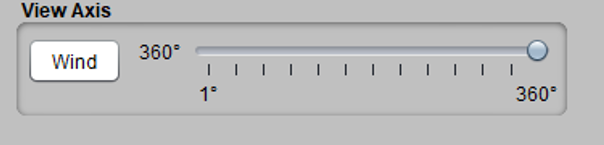
To adjust the view, on the left, click the button 'follow wind', then, the wind will be always from the top of your screen, even if the wind is shifty.
Sometime, you can decide to adjust the screen rotation by yourself, just move the slider, and decide your view angle.
Follow the boats:
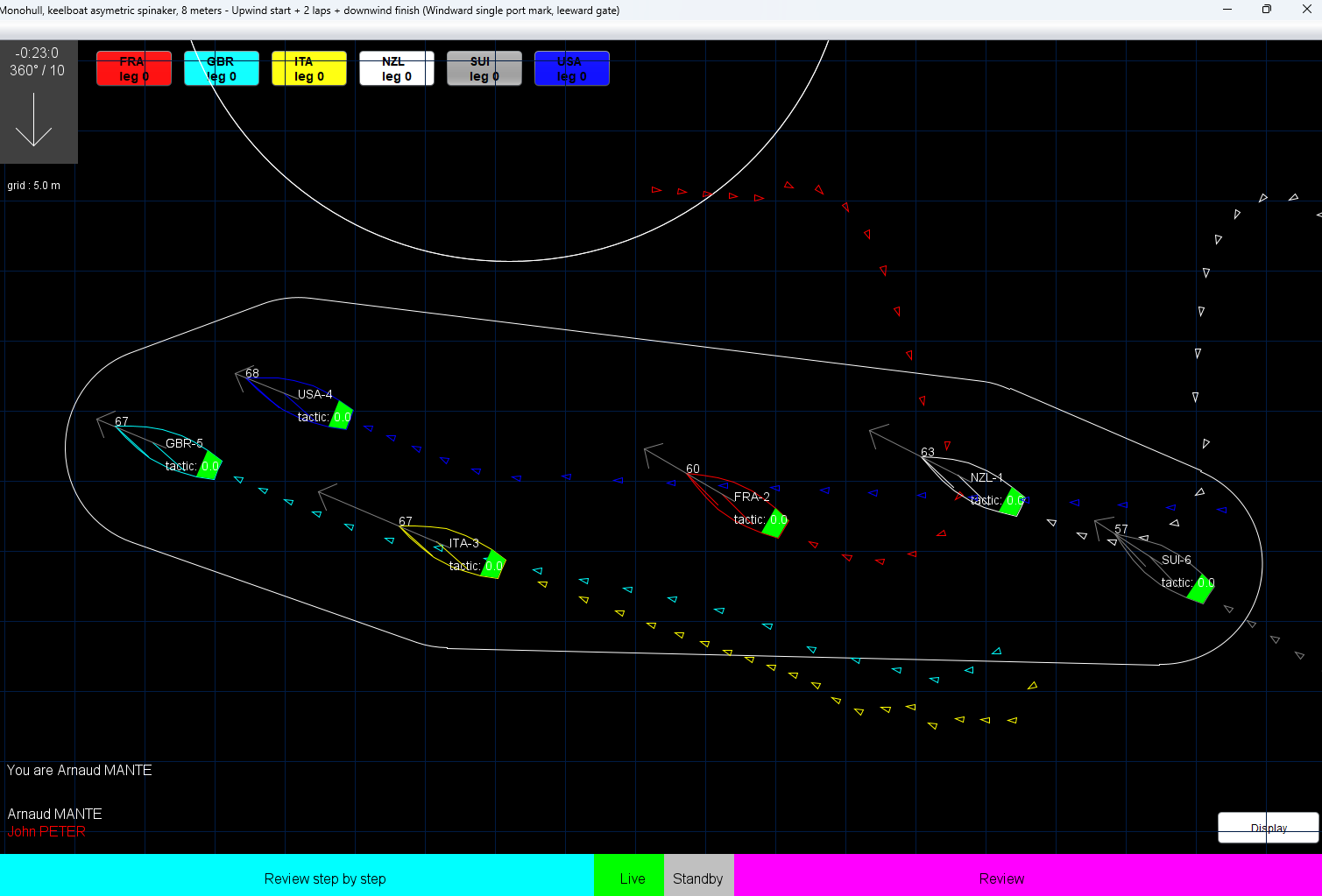
At the beginning of the race, just press the F key of your keyboard (for Fleet), and you will see that all boats are selected.
And the software will stay centered on the fleet when boats are moving.
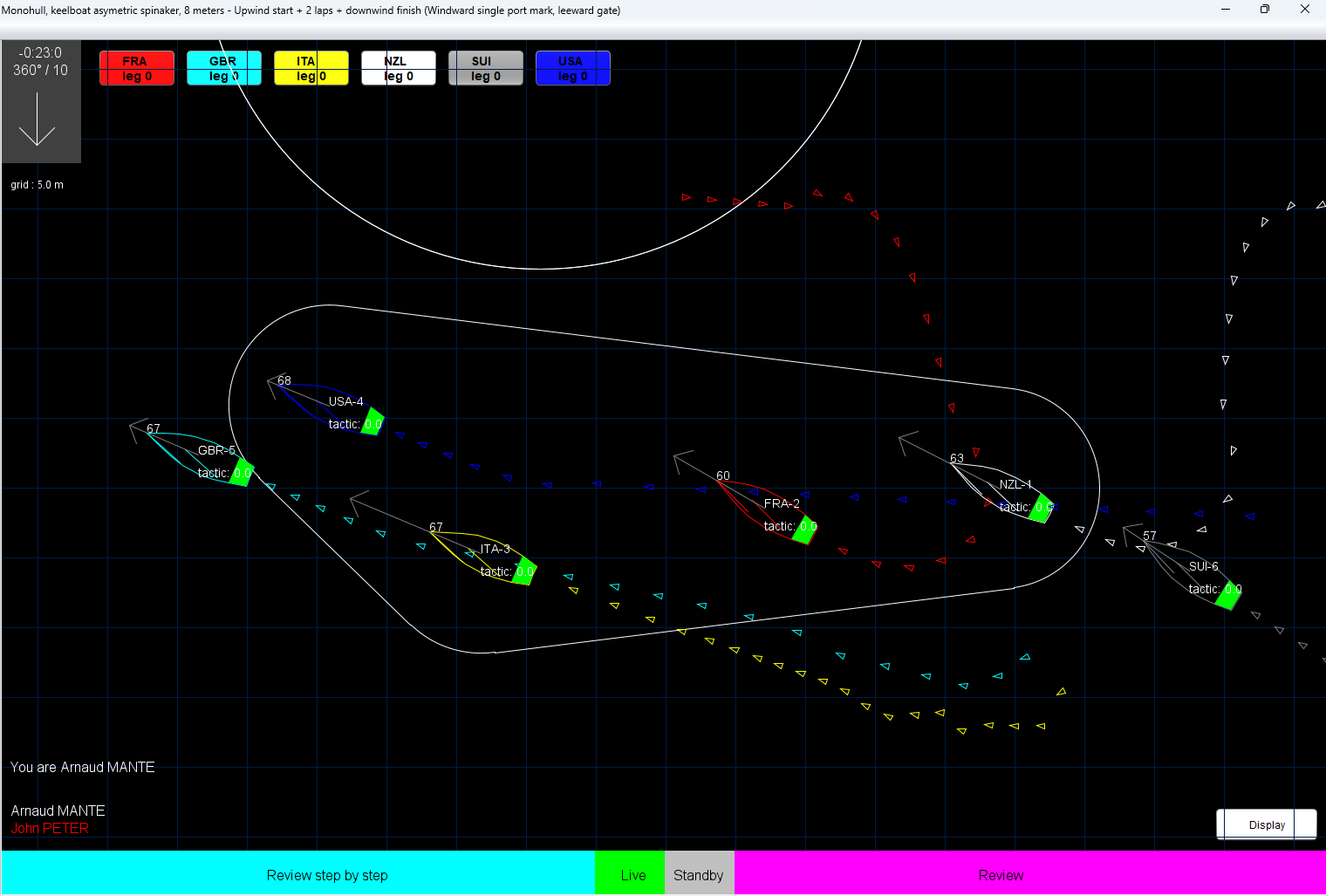
Of course, if boats are diverging, you need to trim the zoom. For this, use the wheel of your mouse to zoom in or zoom out.
Even if you follow the full fleet (or some boats, will see later), you don't want to have the fleet in the center of the screen. This, if you are approaching the starting line, you will prefer to see the line on the top of your screen, and the boats at the bottom. Really easy, with your mouse, right click and hold the button, and then, move your mouse. You can see that the screen is moving.
If you don't want to follow the full fleet:
Again, very easy, just right click far away all boats, and the selection disappears. Of course now, the boats may sail outside your screen.
But, if you want to just remove specific boat to your selection, this is easy, then, right click exactly on a specific boat, and the boat is removed for your selection.
Of course, this is exactly the same process if you wish to add a boat in your selection, just right click on this boat.
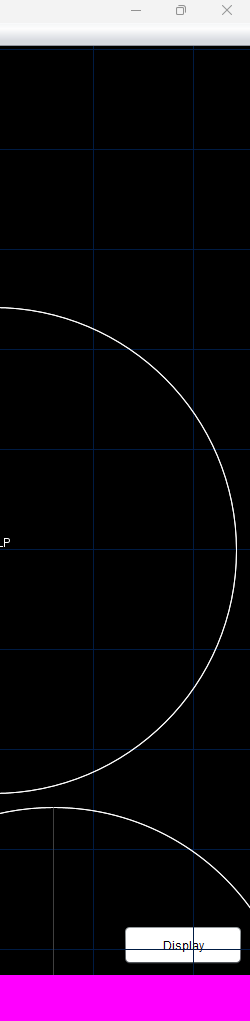
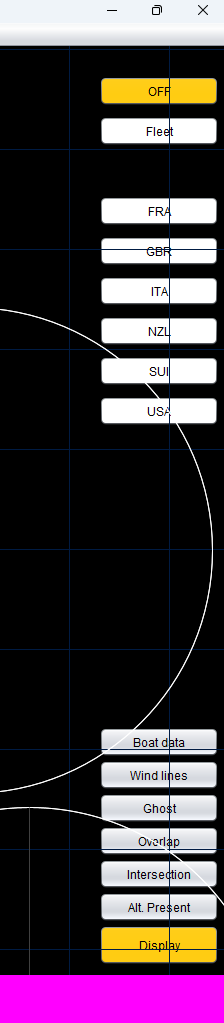
If you don't like to right click on a boat, at the bottom right, click the button Display. You will see different buttons:
Fleet: click on it, and all fleet will be selected.
None: and your selection is now empty.
Boat name: click on any button to add or remove a specific boat from your selection.
Other buttons will be explained later.
The following will apply only with more than one umpire involved in the race.
One of the works of a digital umpire, is to synchronize with other umpires: who will manage which boats?
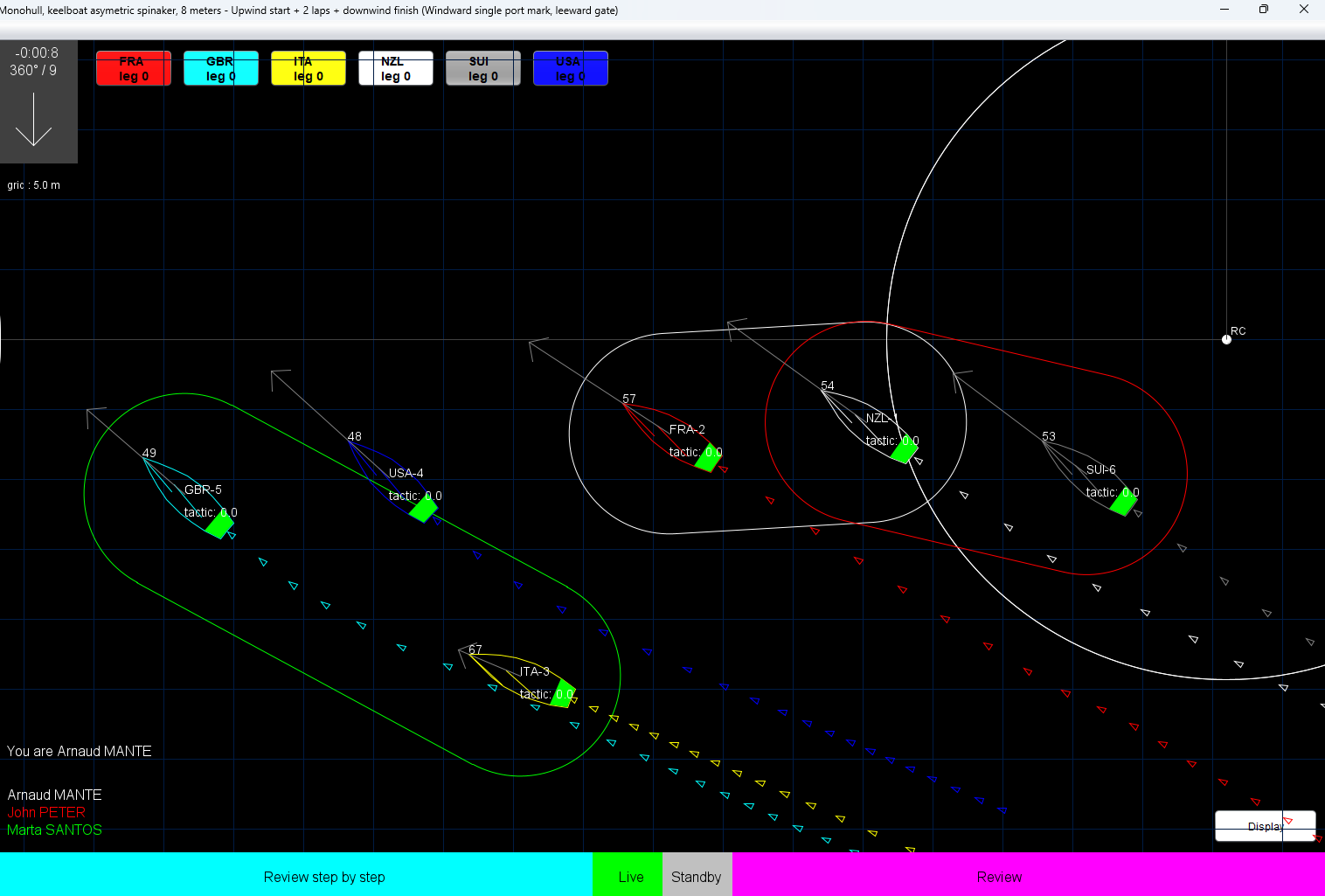
Thus, when an umpire selects some boats, all the other umpires will see it, so no need to cover the same boat with two umpires. On the following pictures, on the bottom left, you can see the list of all umpires involved in this race, with their associated color. And you can see that all boats are covered by different umpires.
In this example :
GBR and ITA are selected by green color, so Marta is following these boats (look at the bottom left, you have a reminder of the color-umpire association)
FRA and NZL are selected by white color, so Arnaud is following these boats
SUI and NZL are selected by red color, so John is following these boats. You can see that NZL is followed by two different umpires
Special chief umpire:
Chief umpire can remove/hide her/his focus to other umpires. So the chief can select boats, and stay invisible to the team, which is perfect for training of following boats, without interfering with other umpires' selection.
For this, go to the top menu bar: Parameters -> Chief umpire send her/his boats selection
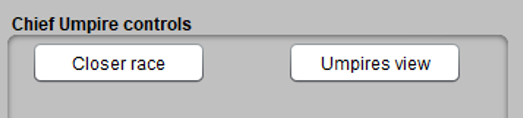
Chief umpire may wish to see if the umpires are using the zoom in correct way. For this, click the button on the left bottom: 'umpires view' and you will see a rectangle which the others umpire screen.
Sometimes, you need to review an incident, it was so fast, you miss a fact, boats were not covered by any umpires or any other reasons.
With digital umpiring, this is possible.
You have two possibilities:
Review frame by frame
Review using continuous speed (slower or faster)
At the bottom of your screen, you see 4 different rectangles:
Review step by step : left click on this rectangle, hold, and move left or right. You will see the action moving step by step. If you stop moving your mouse, the action will stop too.
Live : after a review, it is time to back to live, just click on this rectangle.
Standby : sometime, during a review, you want to stop the action, just click on this rectangle.
Review : left click on this rectangle, hold and move left or right. You will see the action moving. Select the speed to rewing or move forward, if you stop moving your mouse, the rewind or forward will be at the same speed.
Remember that during and standby or review, the boats will continue to race!!
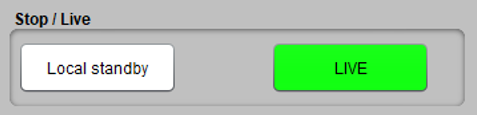
At the left top of your screen, you have two butons :
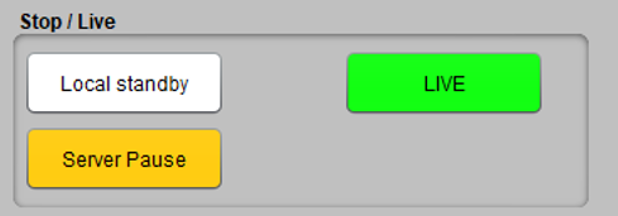
Local standby : if you want to stop the action, but remember, the boats will still continue to race. This button is like the 'Standby' rectangle seen previously.
Live : after a review, it is time to back to live, just click on this button. If you are not live, the button is orange, not green!
Chief umpire:
As chief umpire, or if single umpire, you can pause the race at any moment by pressing the key P. It will put in standby mode the race. All boats will be frozen, and you can take all the time that you wish to review an incident or to explain the correct positioning. When it is done, press again the P key, and start will continue.
When you pause, the boats are not racing anymore! They will wait until you press the key P again.
You can have the same action by clicking the button 'Server pause' at the left bottom.
There are three kinds of penalties in digital world :
Penalty related to a specific single boat
Penalty related to the fleet
OCS
If this is a penalty related to a single boat or the fleet, then a yellow disk will appear at the center of the boat.
If this is an OCS penalty, then a pink disk will appear at the center of the boat.
If a boat has a boat, fleet penalty and also is OCS, then a disk with yellow circle outside, and pink inside will appear at the center of the boat.
Penalty related to a single boat is most of the time for any infringement port/starboard, windward/leeward, mark-room, when the boats are on the same leg.
Penalty related to the fleet is used for a port/starboard infringement when boats are not on the same leg or for boundary as example
OCS, this one is managed automatically, but if a boat is OCS, it needs to slow down until to be behind the good starters. Which are the boats not OCS and crossing the starting line in less than 5 seconds.
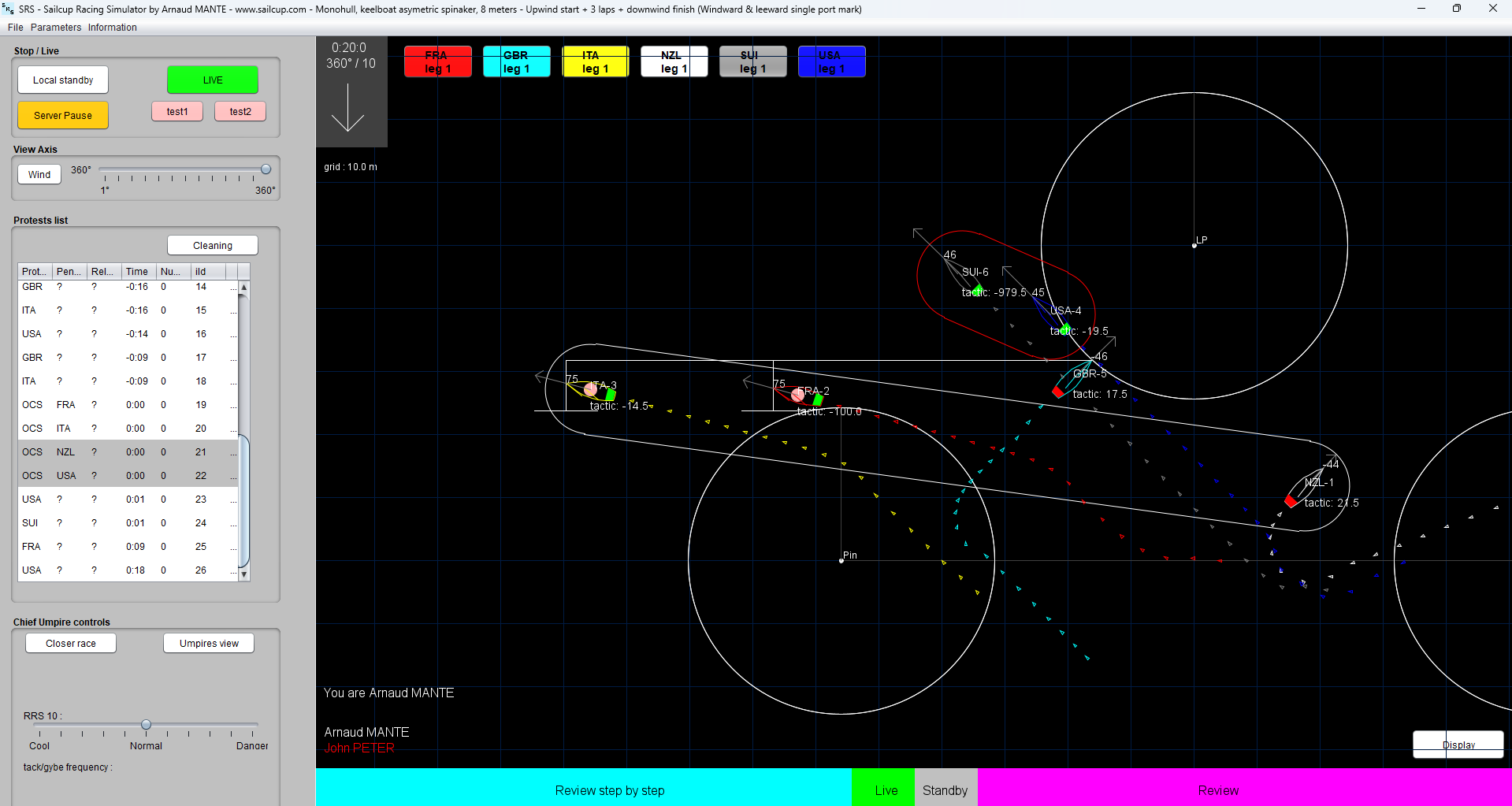
In the following example, if you look on the penalty list on the left, you can see that 4 boats are OCS : FRA, ITA, NZL & USA. NZL and USA are already in grey, which means that these boats have already completed their penalty.
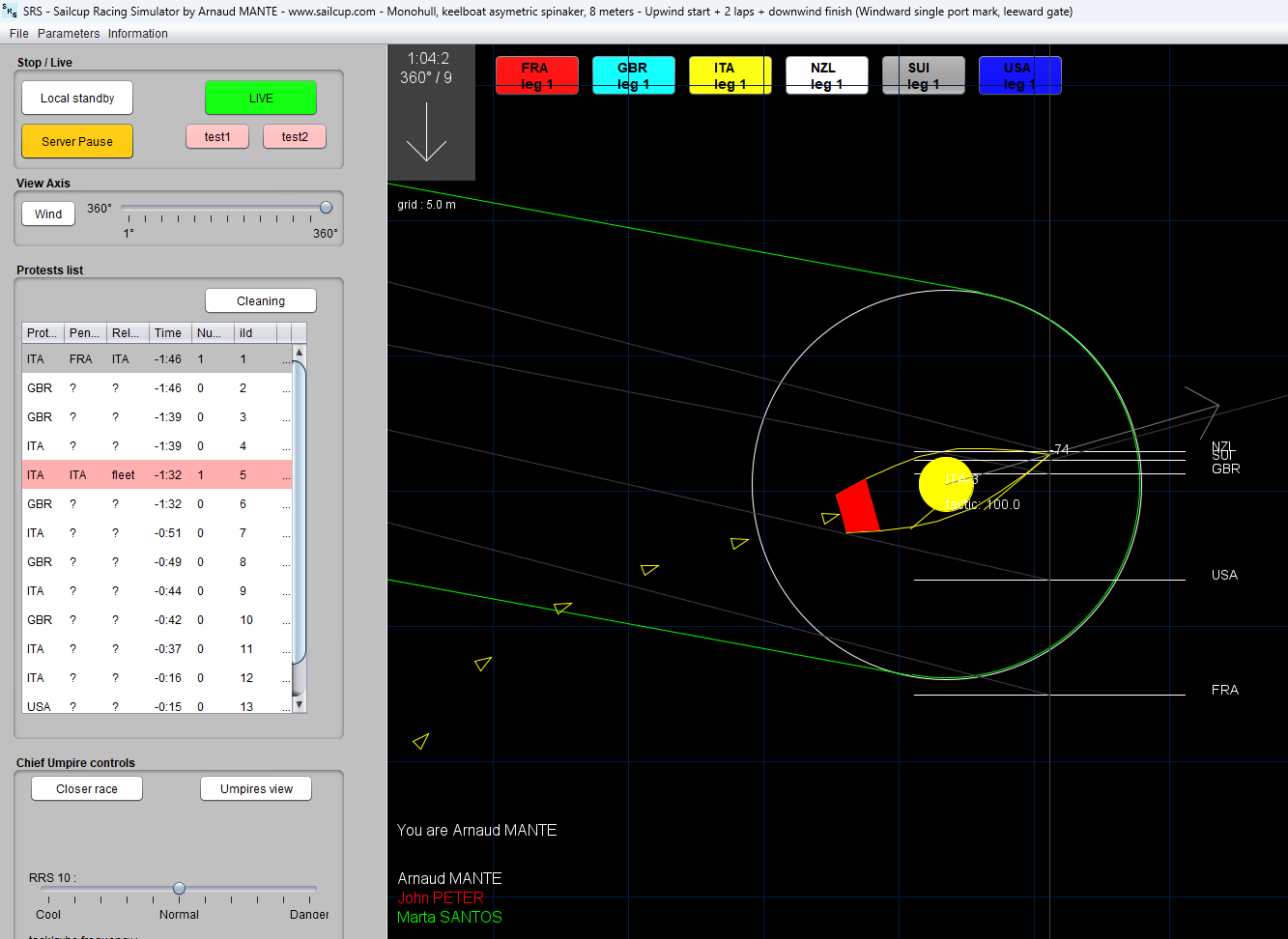
You can see that ITA and FRA have a pink disk at the center of the boat, it indicates an OCS penalty. Also, there is the referential line to complete the OCS penalty. This line is linked to GBR, the last good stater. FRA and ITA are closed to complete the OCS penalty. As umpire, you have nothing to do, OCS penalty is managed by the system.
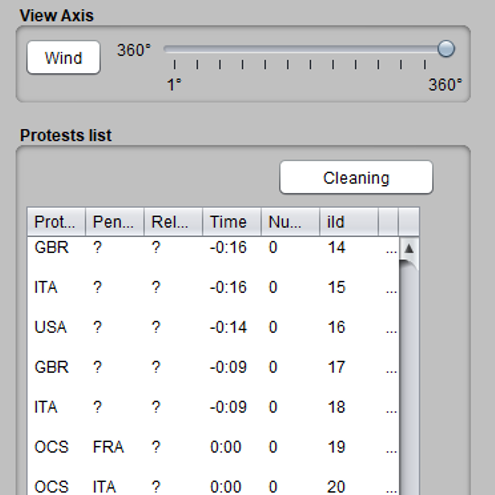
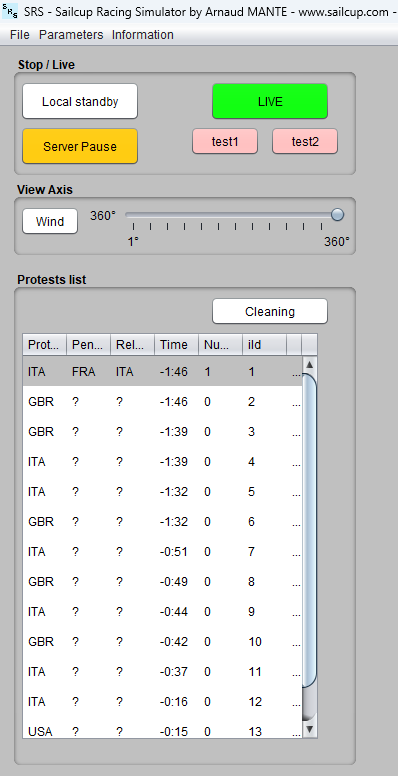
When a boat protests, you will see on the left a new line / entry:
You can see here that many boats have already protested/
Then, you need to take a decision:
Decide that no rule is broken, so green flag
Penalize the protestee, you must decide which boat
Penalize the protestor
Then, if a boat must be penalized, you need to decide after if it is a penalty refer to a boat, or a fleet penalty.
If boat A protests, and you decide to penalize boat B with a boat related penalty, then boat B needs to be behind boat A.
If boat A protests, and you decide to penalize boat A due to infringement related to boat B, with a boat related penalty, then boat A needs to be behind boat B.
How to do it ?
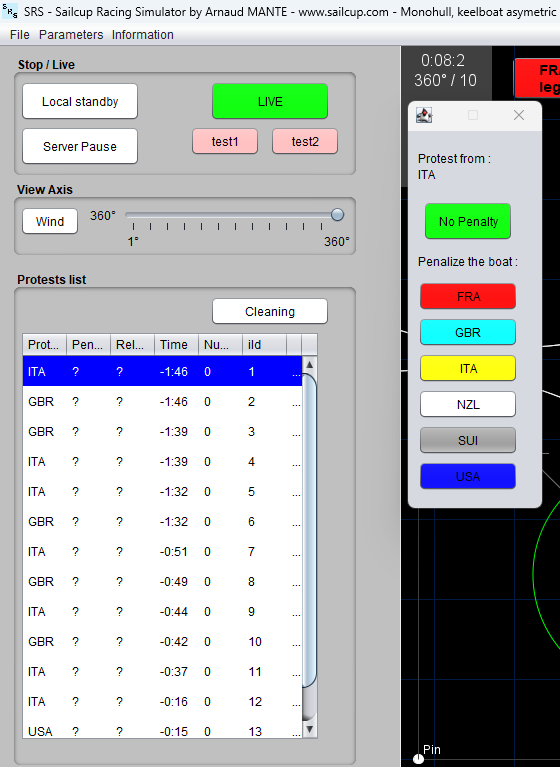
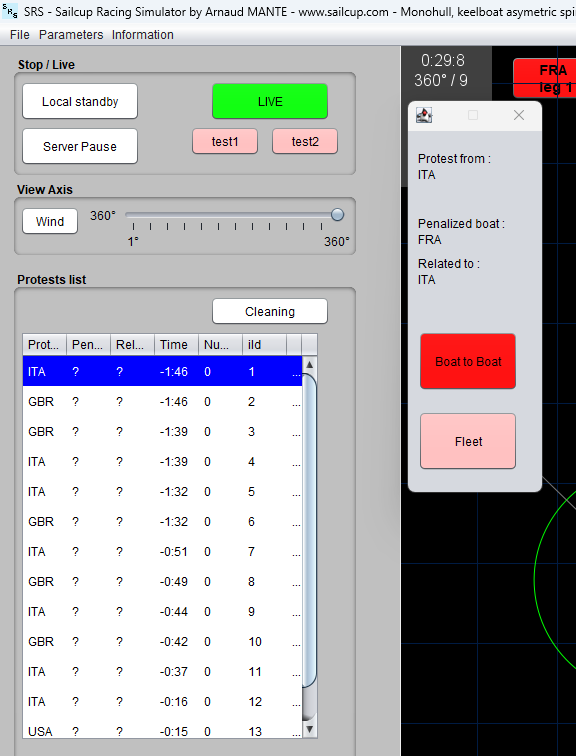
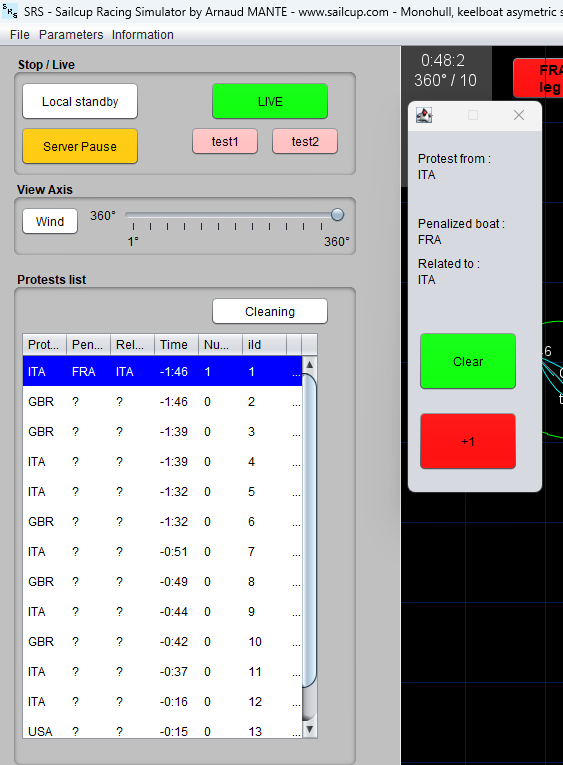
Select a protest in the list. Just left click, select a line in the list. Then, this popup appears.
In this example, ITA protested at -1:45.
In the new popup, you have two options :
Decide that no rule is broken, click the button 'No Penalty'
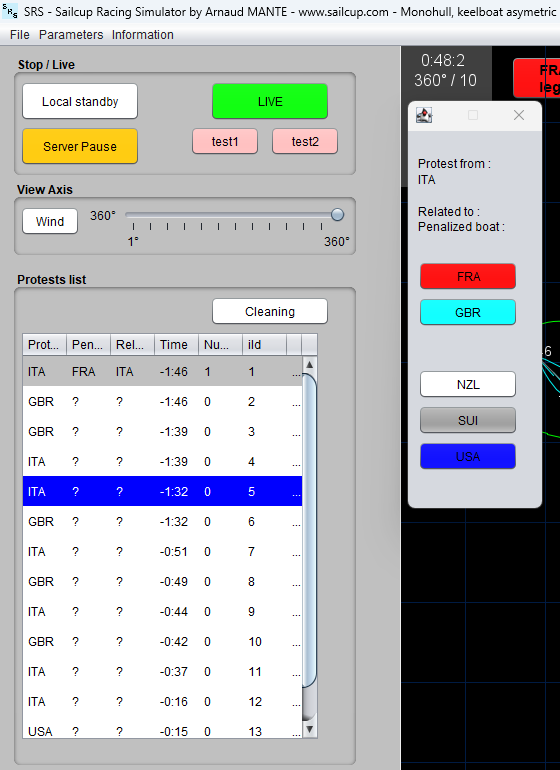
Decide that a boat has broken a rule, and decide which boat will be penalized. It can be the protestor. Click the button of the guilty boat.
Option 1 :
It this option, you have decided that FRA has broken a rule. So you have clicked FRA button. Then, decide if the penalty is a boat to boat penalty, or related to the fleet.
Option 1 :
It this option, you have decided that ITA, the protestor, has broken a rule. So you have clicked ITA button. Then, you have decide now the other boat, innocent, involved in the incident.
A new popup appears. It is a little bit similar than the previous one, but there is no more 'No Penalty' option, and of course you can not choose anymore the ITA boat. You have decided in this example that FRA was the innocent boat involved in this incident. Click FRA button.
Like option 1, you have to decide if the penalty is a boat to boat penalty, or related to the fleet.
Remove the penalty :
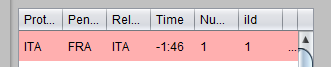
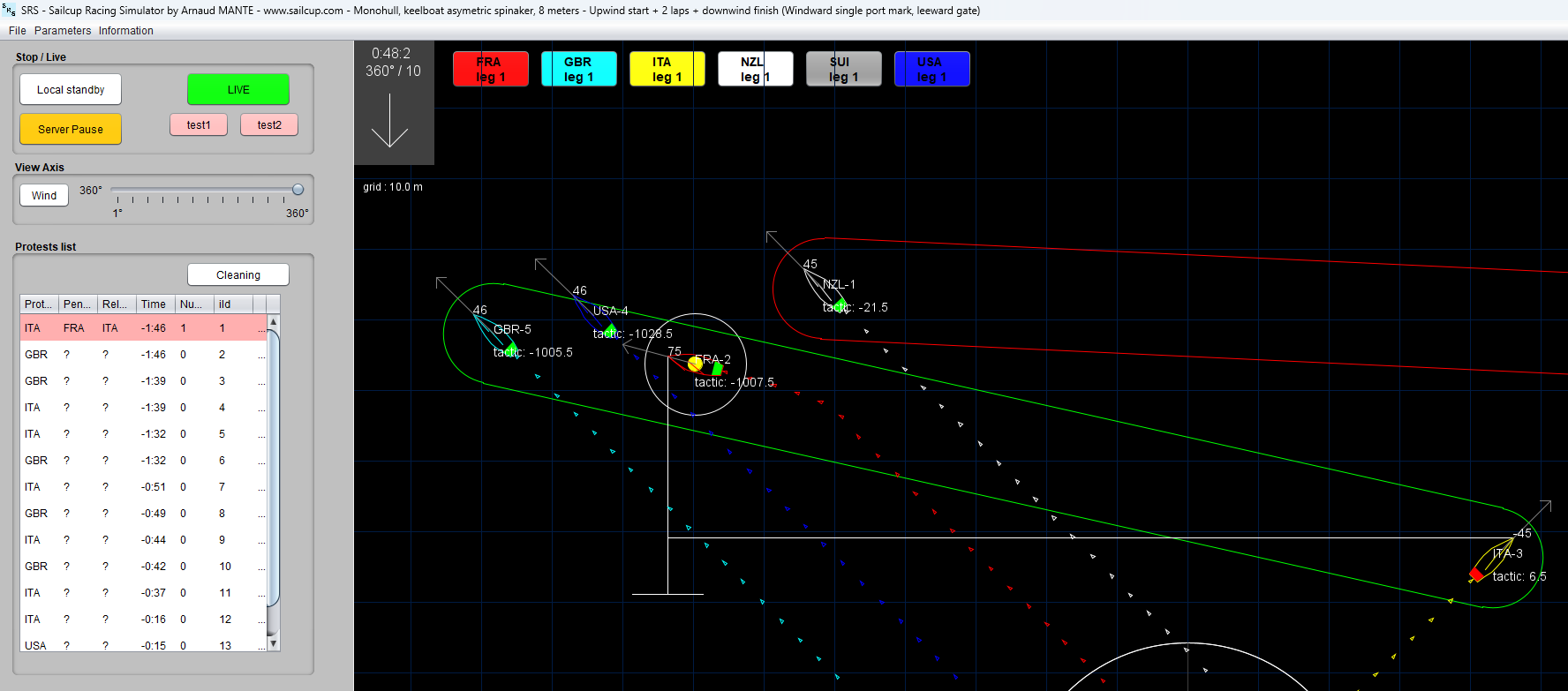
First, you can now identify that a penalty has been given. On the first screen capture, you see the protestor, the penalized boat, and the boat related. In the second example, you can see that the penalty is related to the fleet.
How to remove a penalty ?
Before, you need to know when the penalty is completed.
A penalty is completed when the boat is behind some distance of the related boat.
If the penalty is related boat to a single boat, it is easy.
You can see in this example, that FRA is not yet behind the line from ITA. FRA will slow down and bear away to lose enough distance.
If the penalty is related to the fleet, you need to decide which boat is the most relevant.
For this, you can see the name of each boat of the fleet, select the most accurate and check that the guilty boat is behind the horizontal line.
When you have decided that a boat has completed the penalty, it is time to remove, click on the penalty, in the list in the left, then, you have this popup :
And now, click the green 'Clear' button.
But, if you think that the guilt boat was too long to take the penalty, you can add another one, and just click the red button '+1'.
When a penalty is validated, completed, in the list, the penalty will appear in grey, and not red anymore.
Click the button 'Cleaning', and all old penalties, in grey, will be removed from the list.
You can use Sailcup Racing Simulator in different modes :
Distance penalty : umpires are using a 2D view to replay calls and penalize boats. Boat will complete the penalty be losing distance. It can be done by a single umpire, or many umpires connected at the same time on the same race.
Turn penalty : umpires are using a 2D view to replay calls and penalize boats. Boat will do a turn penalty when penalized. It can be done by a single umpire, or many umpires connected at the same time on the same race.
Driving simulation 1 : the chief umpire will check positioning with 2D view, and the umpires will drive their umpire boat in a 3D environment by using a gamepad.
Driving simulation 2 : the umpires and the chief umpire will drive their umpire boat in a 3D environment by using a gamepad. It can be done by a single umpire to practice umpire positioning.
Drone umpiring 1 : the chief umpire will check the overall situation with 2D view and ask to the drone pilot to be positionned so every cross will be covered by video. The best situation to practice video refeering.
Drone umpiring 2 : the umpire alone can pilote a drone in the middle of a fleet.
One of the beauties of digital umpiring is to use digital tools to make your call more accurate.
You have some tools available for you, and you can use keyboard or button (by clicking display button on right bottom) :
Boat data (or press key D) : one click, it will display the course of the boat, a second click, it will also display the speed, a third click, and everything removed
Ghost boat (or press key G) : It will show you the position of a boat in 3 seconds if the boat was holding its course at the same speed
Alternate present (or press key P) : it will show you the position of the boat if 3 seconds ago, the boat was holding its course and not changing course (it can be helpful during debriefing to see potential collision or not)
Overlap (or press key O) : will be easy to see the moment when an overlap is created or approaching a mark.
Anticipated Intersection (or press key A) : when boats are converging (port / starboard or same tack), it will display in meter the minimal distance between the boats if they are holding their courses and speeds. Perfect to judge if a port boat is crossing or if it will be a swing and miss for windward / leeward.
For this section, you need to have a gamepad connected to your laptop.
Xbox gamepad was tested successfully with Linux and Windows. For Mac, at the moment, it is not possible to use this simulation mode.
Drive your umpire boat :
If you select the umpire boat driving simulation, you can drive your boat in a 3D environment.
Direction
Move left or righ the left joystick. If you release the left joystick, the boat will stop to turn. Of course, you need to have some speed to turn.
Speed
Push the right trigger, and your umpire boat will accelerate, release the trigger when you reach the appropriate speed.
If you wish to slow down, push the left trigger and release it.
If you continue to push the left trigger, then your umpire boat will move slower, until it will start to move backward. If you wish to move forward now, release the left trigger, and push the right trigger again.
View
Use the right joystick to control your view, your 'head/eyes'.
If you want to turn a little bit your head on left, just move the right joystick on the left and release it. Now your head is oriented to the left. If you wish to look in front of the boat, move a little the right joystick on the right.
If you wish to penalize a boat, you can do it by pressing the key corresponding to the number of the boat. In the sail, if you see ESP-2, then press 2 to penalize ESP.
Pilot your drone :
If you are familiar with drone piloting, the gamepad reproduces the exact same flight commands.
Altitude :
Push or pull the left trigger until you reach the correct altitude
Rotation, :
Move left or right the left joystick until your drone is facing the wanted course.
Moving sideway :
Move left or right the right joystick then your drone will move sideway.
Moving forward or backward :
Push or pull the right joystick then your drone will move forward or backward.
Moving the camera angle :
Push and hold the left trigger to move the camera down.
Push and hold the left front button (just above the left trigger) to move the camera up.
Zoom :
Push and hold the right trigger to zoom with the camera.
Push and hold the right front button (just above the right trigger) to zoom less.
Max speed :
To make it more realist, the speed has a maximum 100% (displayed on the left top of your screen).
But if you want to simulate a more powerfull drone, you can increase the speed limit by pushing button : B. If you want to return to 100%, push the button A.